
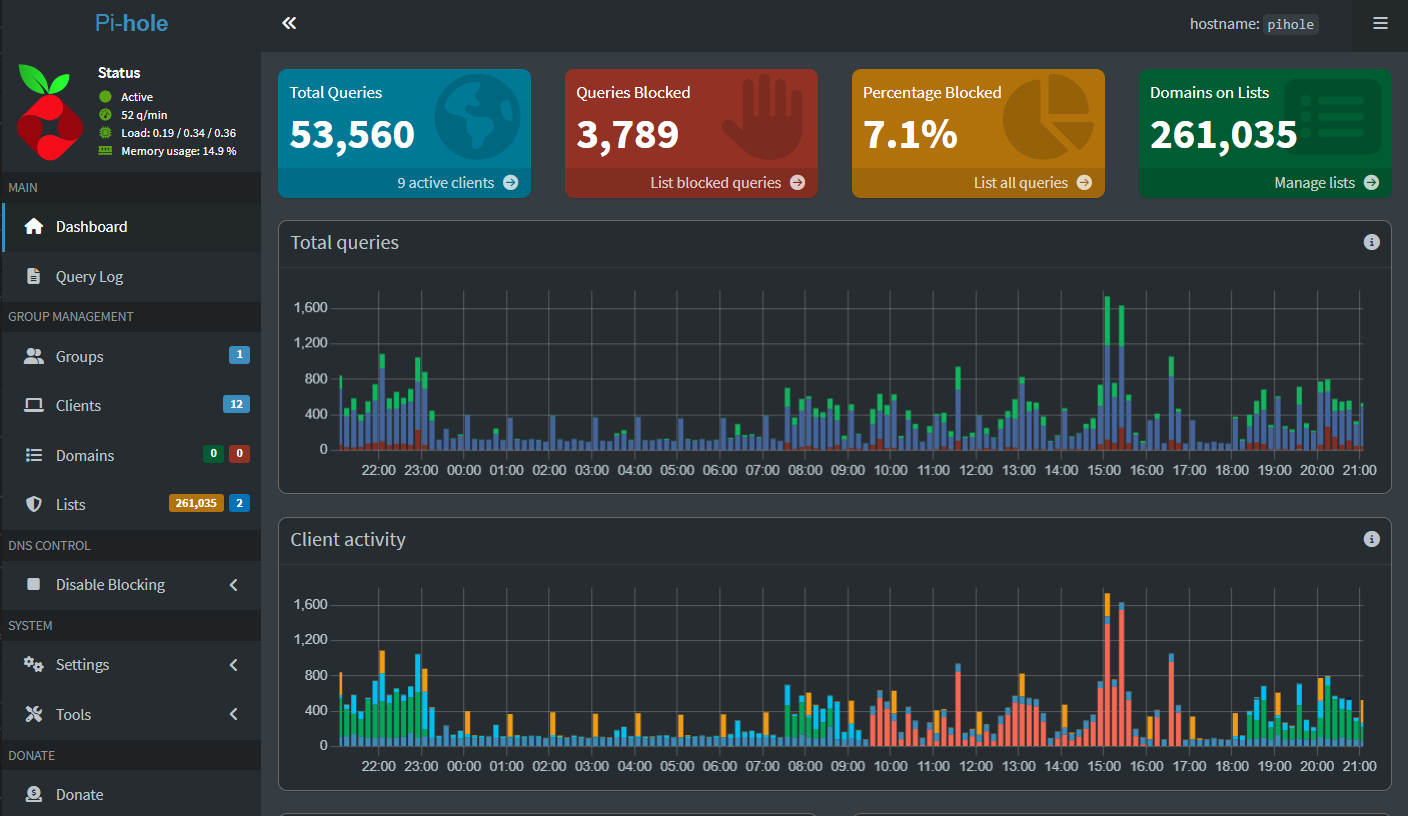
I recently started building a virtualized home network using my GMKtec N100 Mini PC, with Proxmox VE as the hypervisor. Inside this environment, I deployed OPNsense as a virtual router and Pi-hole as a DNS-based ad blocker.
In this post, I’ll walk through how I installed Pi-hole inside a Proxmox LXC container, assigned it a static internal IP, and configured it to work with OPNsense as the DNS resolver — all inside a self-contained virtual network.
Overview of the Virtual Setup
Host:
- GMKtec N100 Mini PC
- Proxmox VE (with virtual bridge networking)
Virtual Machines & Containers:
OPNsenseVM — virtual firewall/router (192.168.10.1)Pi-holeLXC container — DNS server and ad blocker (192.168.10.2)- Virtual LAN:
192.168.10.0/24(used only internally within Proxmox)
Step 1: Creating the LXC Container for Pi-hole
In the Proxmox web UI:
- Download a Debian template (e.g.,
debian-12-standard) underlocal > CT Templates. - Click Create CT and configure:
- Hostname:
pihole - Template: Debian 12
- Storage: 4GB is sufficient
- CPU & RAM: 1 vCPU, 512MB RAM
- Network:
- Static IP:
192.168.10.2(or any free IP in the internal subnet) - Gateway:
192.168.10.1(OPNsense)
- Static IP:
- Features: Enable Nesting
- Hostname:
Once created, start the container and access its console via Proxmox.
Step 2: Installing Pi-hole Inside the Container
Inside the container’s shell:
apt update && apt upgrade -y
apt install curl sudo -y
curl -sSL https://install.pi-hole.net | bash
During the installer prompts:
- Interface: Select
eth0 - Upstream DNS: I chose Cloudflare (1.1.1.1)
- Blocklists: Keep defaults; you can add more later
- Web admin interface: Yes
- Query logging: Yes
- Privacy level: I kept the default for now
Once completed, Pi-hole runs as a DNS server on 192.168.10.2.
To access the admin UI from another VM or container in the virtual network:
http://192.168.10.2/admin
You can set a password with:
pihole -a -pStep 3: Configuring OPNsense to Use Pi-hole for DNS
My OPNsense VM is the default gateway (192.168.10.1) for all internal devices in this virtual network. To route DNS requests through Pi-hole:
In the OPNsense Web UI:
- Services > DHCPv4 > LAN
- Set DNS servers to
192.168.10.2 - Ensure the option “Ignore the DNS servers provided by the DHCP server” is unchecked
- This makes Pi-hole the DNS server for all devices using DHCP inside the virtual LAN
- Set DNS servers to
- System > Settings > General
- Set DNS servers manually (e.g., 1.1.1.1, 8.8.8.8) for OPNsense itself
- Uncheck “Allow DNS server list to be overridden by DHCP/PPP on WAN”
- Services > Unbound DNS > General
- If Unbound is enabled, you can:
- Either disable it completely and delegate DNS to Pi-hole
- Or forward queries to Pi-hole (less common)
- In my case, I disabled Unbound so that clients rely solely on Pi-hole
- If Unbound is enabled, you can:
Step 4: Testing the Setup
Inside a virtual client (like another VM or LXC container in the same network):
- Check if the system received Pi-hole’s IP as DNS via DHCP:
cat /etc/resolv.confShould show: nginx nameserver 192.168.10.2 - Use
digornslookupto verify DNS resolution:dig google.com - Visit a few ad-heavy websites in the browser.
- You should see fewer (or no) ads
- The Pi-hole dashboard (
http://192.168.10.2/admin) should show DNS queries
Optional: Enable Conditional Forwarding in Pi-hole
This allows Pi-hole to resolve local hostnames from OPNsense:
- Go to the Pi-hole admin panel
- Settings > DNS
- Scroll down to Conditional Forwarding and set:
- Local network:
192.168.10.0/24 - Router IP:
192.168.10.1 - Local domain name: This is usually
localor whatever you set in OPNsense DHCP
- Local network:
This will help display hostnames instead of just IP addresses in Pi-hole logs.
Current Status
As of now:
- Pi-hole is fully functional and intercepting DNS queries inside my virtual environment
- All internal devices get DNS from Pi-hole via OPNsense’s DHCP
- Logs, blocking, and filtering work as expected
However:
- My physical home devices are not yet using Pi-hole
- The virtual LAN is not bridged to my home LAN or router
Conclusion
Setting up Pi-hole inside a Proxmox environment alongside OPNsense was a clean and modular approach. It allowed me to test and validate everything in a sandboxed environment before exposing it to the broader network.
This setup gave me:
- Full control over DNS
- Network-wide ad blocking (within the virtual LAN)
- Insight into DNS requests from each device
The next step will be bridging or routing traffic from my physical home network into this environment — either by placing Proxmox between the modem and router or bridging the virtual LAN to my LAN.
Until then, this setup provides a safe and functional internal DNS firewall.